
TL;DR
Marginalis is a JetBrains IDE plugin that lets you and your coding agents collaborate through comments directly in the editor—like Google Docs comments over live code.
- Install the Marginalis JetBrains plugin.
- Install the agent skill:
1
npx skills add MuhammadFarag/marginalis -g -y
- Press
Alt + Shift + M(⌥⇧M) on any line or selection to start a thread with your agent in the margin.
Why Marginalis?
Over the past year, Claude has gradually taken over my code-writing activities. I spend more time now pairing with Claude than typing code myself. How closely I read the generated code depends on the context: whether the project is personal or professional, and whether the code is a means to an end (for example, vibing a throwaway dashboard for pull request reviews) or part of a critical system.
When I need to work closely with Claude—whether pairing on code or collaborating on design documents—communicating across two separate interfaces has been a struggle. With JetBrains IDEs on one side and Claude Code in the terminal on the other, I found myself repeatedly copying text, citing line numbers, or vaguely describing code constructs. It was time-consuming and distracting, and it made getting into a state of flow difficult.
Code reviews, both my own and my teammates’, had the same friction, especially once GitHub entered the mix. I usually take my first review pass with Claude, then pair on why a decision was made or how a refactoring might look. In many cases, I asked Claude to leave comments on the pull request with a specific marker so I could search for the spots I wanted to revisit. The context switching became so distracting that I started printing physical paper copies of pull requests, PRDs, and technical design documents just to stay focused and avoid missing important details.
This is how Marginalis was born. Marginalis is a JetBrains IDE plugin that exposes a local endpoint for coding agents. We can leave comments “in the margin” for agents to read and respond to directly in the editor, and agents can leave comments for us in return. The first iteration was simple. Over the following couple of months, Marginalis evolved to support live chat with agents (per thread or across all threads), reproduce GitHub pull request comments and conversations inline, assist with code reviews directly in the editor, and more.
Marginalis at a Glance
In the rest of this article, we will tour the core workflows of Marginalis (as of version 0.2.11), from posting your first comment to walkthroughs, project-wide threads, and inline pull request reviews. Full reference documentation will follow in future posts.
Marginalis has five main interfaces:
- Editor threads for comments anchored to code selections and files
- Margin tab for project-wide comments
- Marginalis tool window for browsing all comments and walkthroughs
- Settings page for configuring avatars, people, and thread behavior
- Your agent chat where the agent reads and replies to threads
Marginalis operates in three modes:
- Turn-based mode
- Live interactive mode across all threads
- Live interactive mode for specific threads
Marginalis works across JetBrains IDEs (such as IntelliJ IDEA, PyCharm, and WebStorm). It helps the agent distinguish between multiple running IDEs and multiple open projects within each IDE, routing messages to the right place.
Marginalis also supports multiple agents running at the same time. Agents can even use Marginalis to communicate with one another directly over the code.
How the Agent Interacts with Marginalis
You can install the Marginalis skill so your agent knows how to connect to and use Marginalis:
1
npx skills add MuhammadFarag/marginalis -g -y
The IDE plugin serves its documentation from a local endpoint that the agent can reach, and the skill points the agent to that endpoint. Because the documentation ships with the plugin itself, it updates automatically whenever you update the plugin—the skill never goes out of date.
For live communication, the endpoint documentation shows the agent how to open a long-polling connection to stay connected to the IDE.
Commenting on Code (or Any Text)
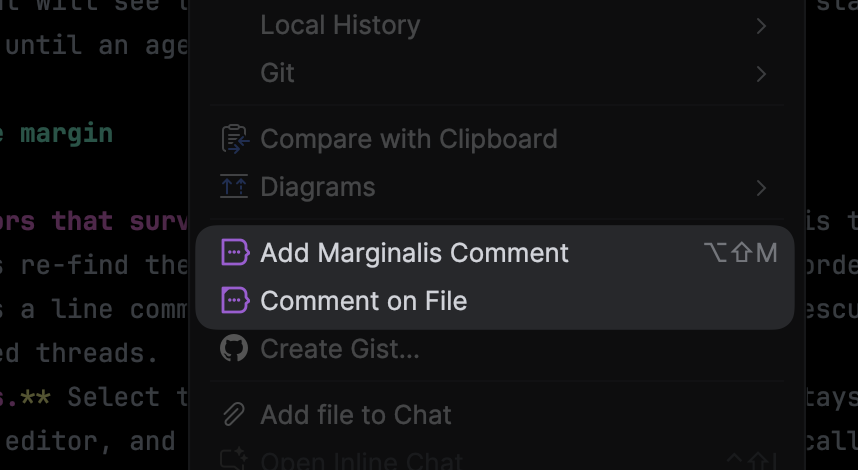
Right-clicking any line of code—or a selection spanning one or more lines—adds two items to the editor context menu:
- Add Marginalis Comment (
Alt + Shift + M/⌥⇧M): Adds a comment anchored to the current line or selection. - Comment on File: Adds a file-level comment.
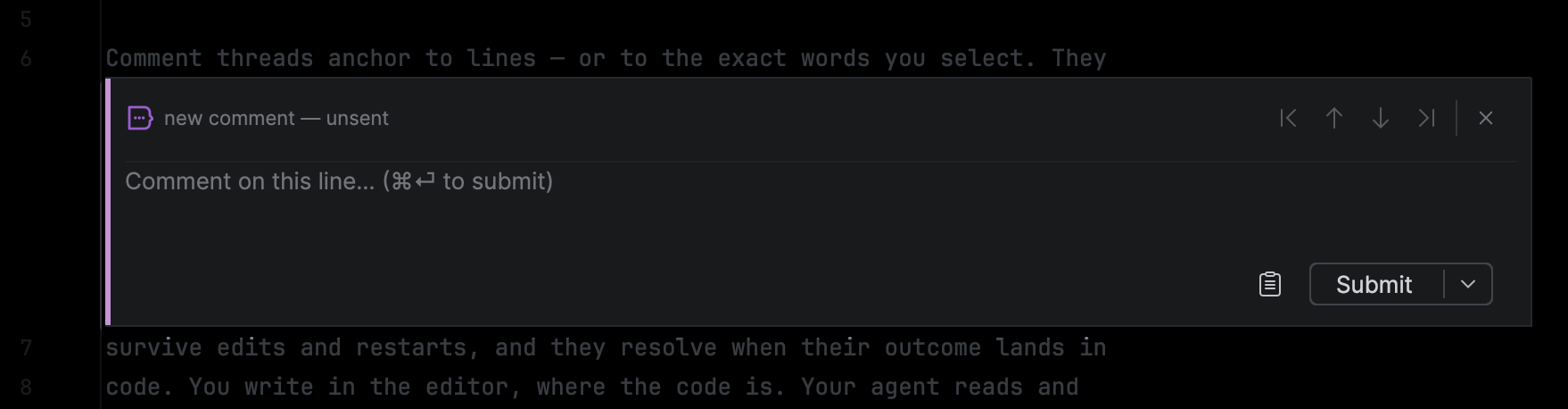
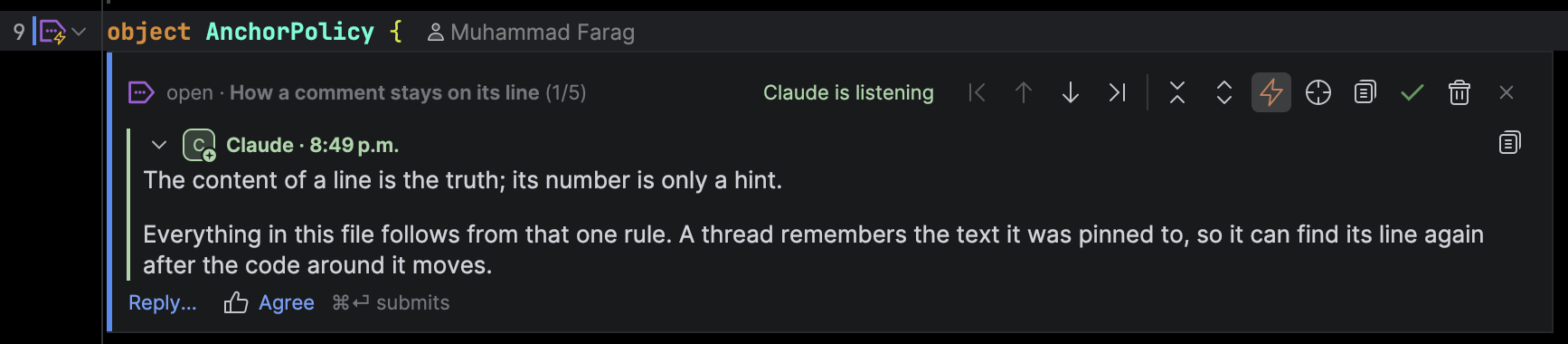
Selecting Add Marginalis Comment opens an inline comment overlay directly below the target line:
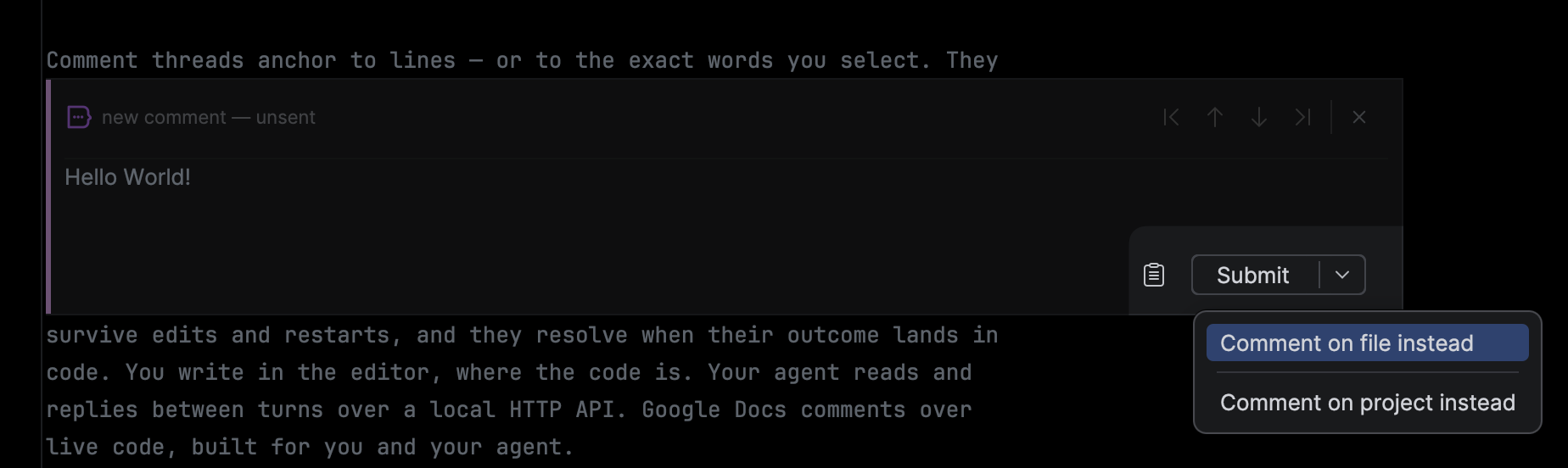
By default, submitting the comment (Cmd + Enter / ⌘↵) posts it on the current line or selection. You can also use the Submit dropdown to post the comment on the entire file or the project instead, which is useful when a comment spans multiple files.
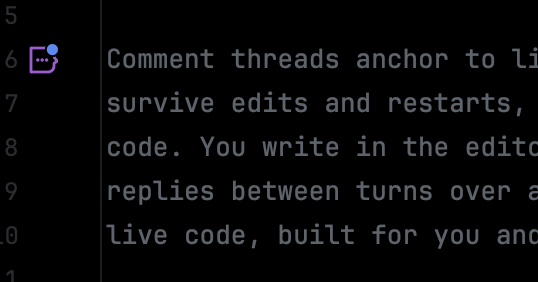
Once submitted, the comment is pinned in the editor window. Marginalis uses your logged-in GitHub avatar by default, and you can override it in the settings.

Clicking the Marginalis icon in the gutter collapses the thread into the margin so you can read the surrounding code without distraction.
Here is a breakdown of the controls available in a comment thread:

- Thread status (for example,
open). - Thread navigation to jump to the first, previous, next, or last thread.
- Collapse or expand all messages in the thread (helpful as threads grow longer).
- Toggle live conversation with the agent for this thread (covered below).
- Locate in Marginalis tool window to jump to the file in the tool window.
- Copy thread reference to paste into your agent chat.
- Resolve thread, which removes it from the editor gutter while keeping it accessible from the Marginalis tool window.
- Delete thread permanently (not recoverable).
- Close the overlay (collapses the thread back into the gutter).
- Edit message content.
- Copy message reference for a specific reply.
- Collapse an individual message, alongside the author’s avatar, name, and timestamp.
- Reply to the thread (
Cmd + Enter/⌘↵to submit).
Getting a Reply from the Agent
Ask your agent in its chat to check Marginalis—for example, “Check my Marginalis comments.” The agent reads the threads waiting for it and replies directly under your message.
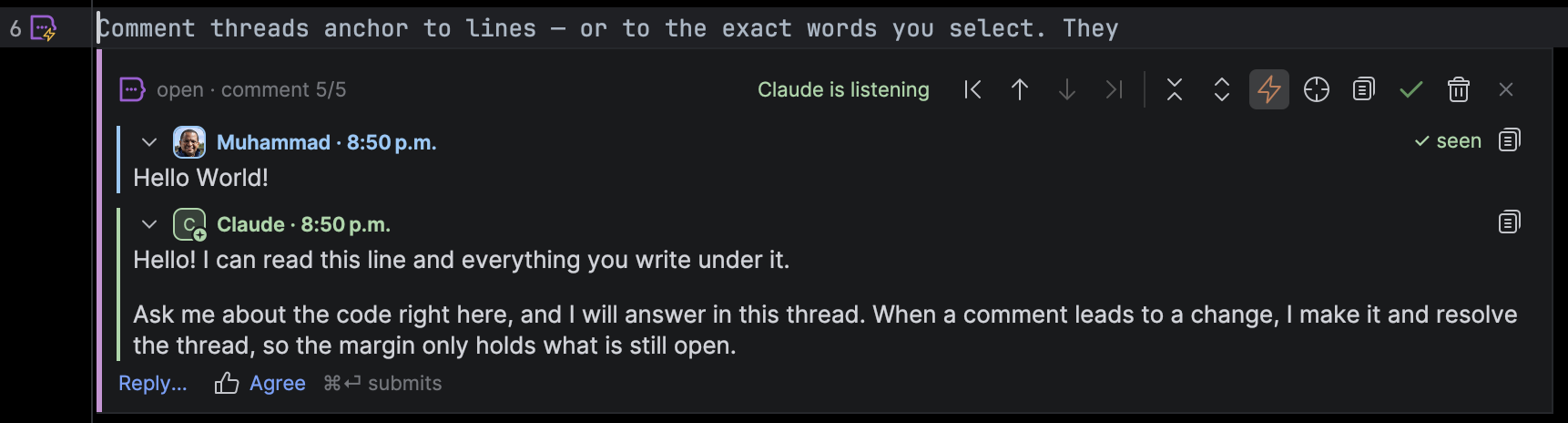
After replying, the agent keeps listening. How your next message reaches it depends on the mode:
- Turn-based mode: Write your comments and replies, then click Submit round in the Marginalis tool window. The agent receives the entire batch at once.
- Live mode for a thread: Click the lightning bolt in the thread header. Each reply in that thread reaches the agent immediately.
- Live mode for the project: Click the lightning bolt in the tool window. Every open thread becomes live.
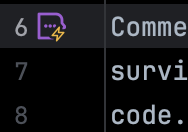
A live thread carries a small lightning bolt on its gutter icon:
When the Agent Starts the Thread
The agent can open threads as well. Ask it to review a file, and it places each remark directly on the line it concerns.
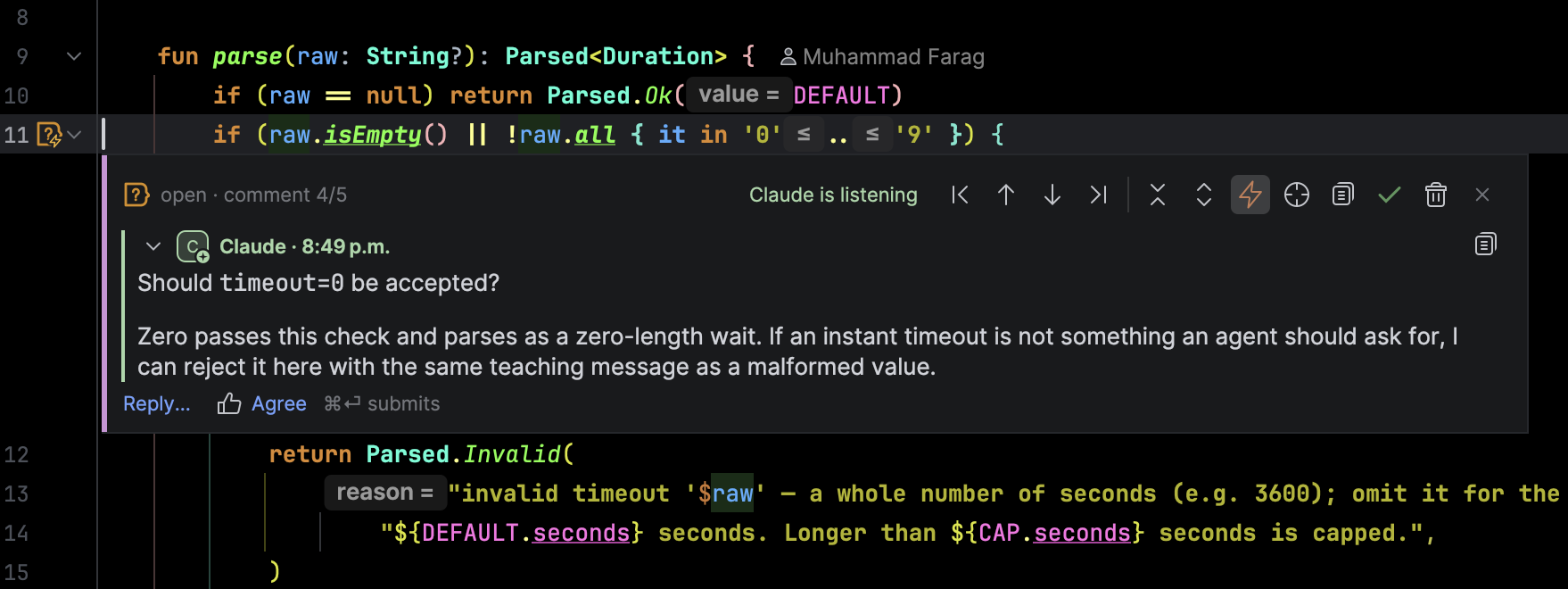
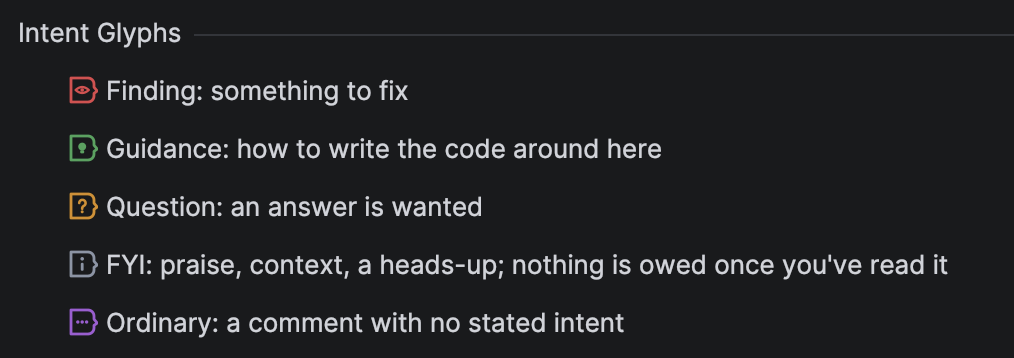
Clicking Agree accepts a proposal in one click. Each thread’s icon signals what kind of response it expects:
Walkthroughs and the Tool Window
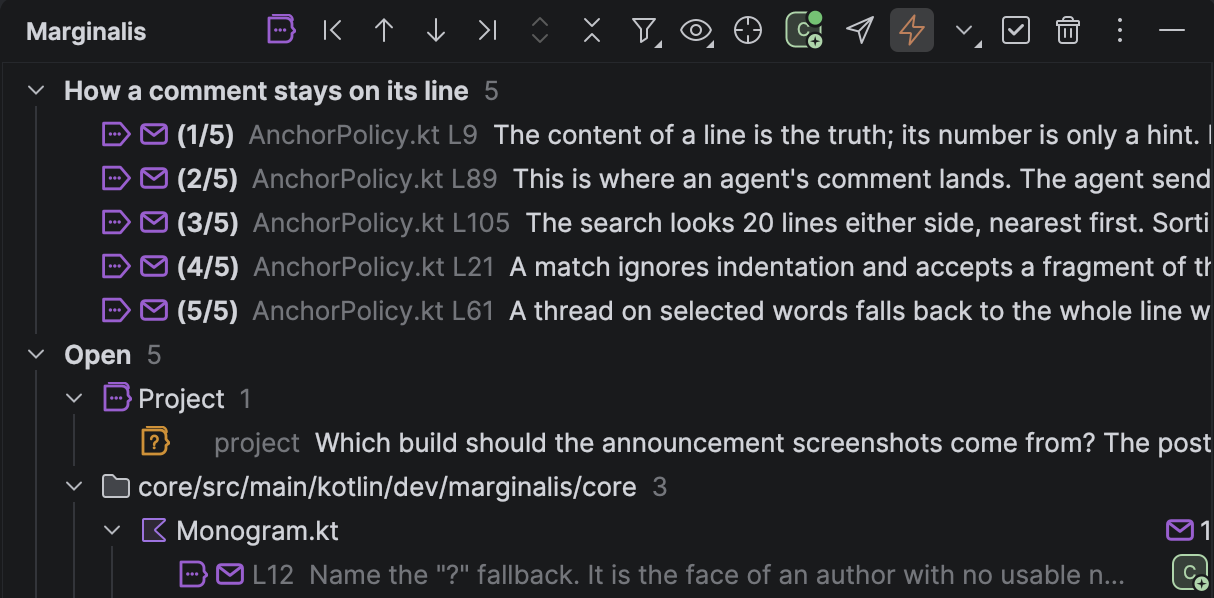
A walkthrough is an ordered set of threads across files. Ask the agent to walk you through a change it made, or through unfamiliar code you want to understand.
The Marginalis tool window lists each walkthrough with its steps in order, followed by open threads grouped by project, folder, and file. An envelope icon marks the threads where it is your move.
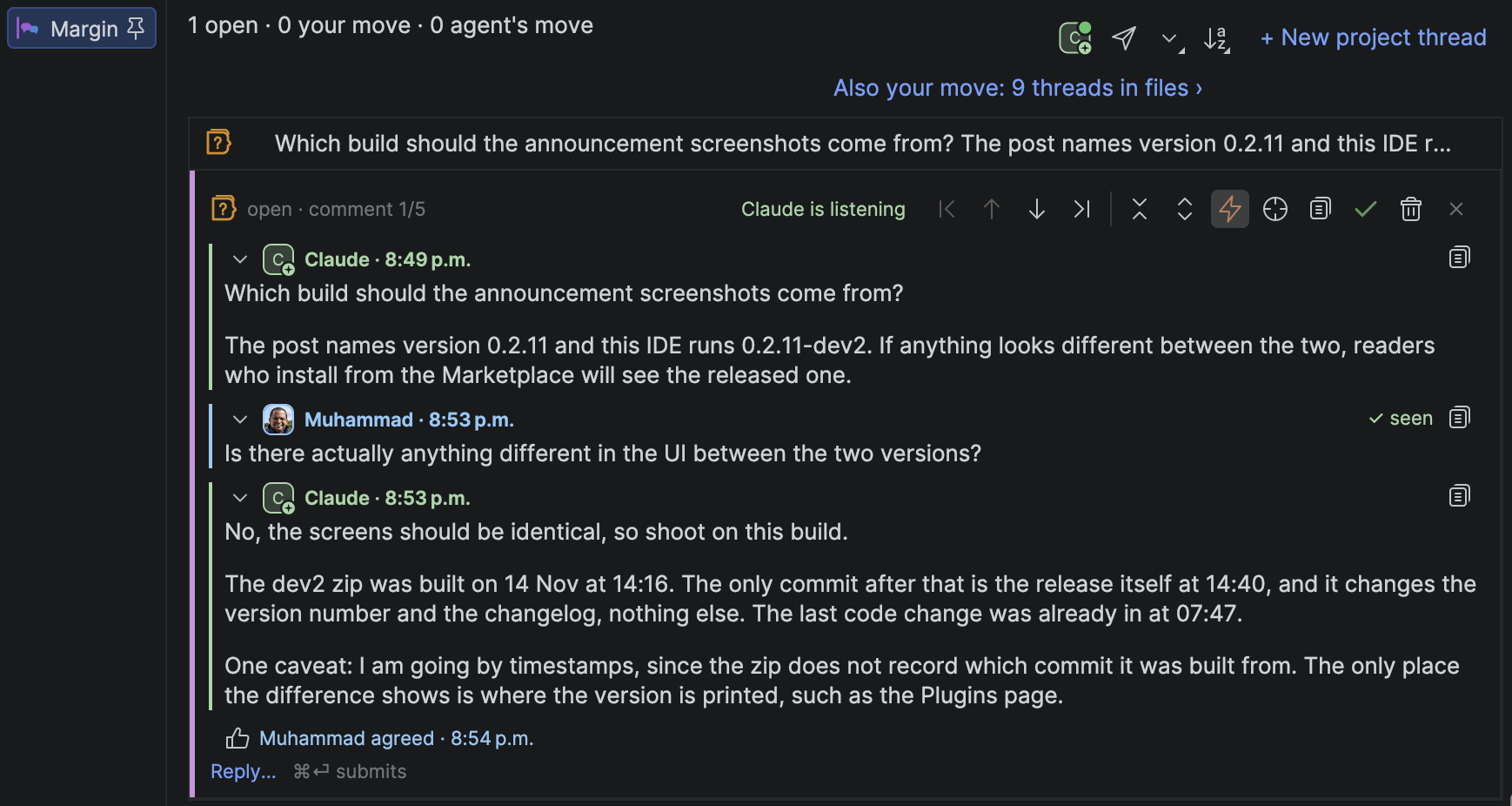
Project-Wide Threads
Conversations about the project as a whole—such as an implementation plan or an architectural decision—live in the Margin tab beside your code.
Pull Request Conversations
Ask the agent to bring a pull request’s discussion into Marginalis. Each GitHub comment lands on its line, under its author’s name, with a link back to the original comment.
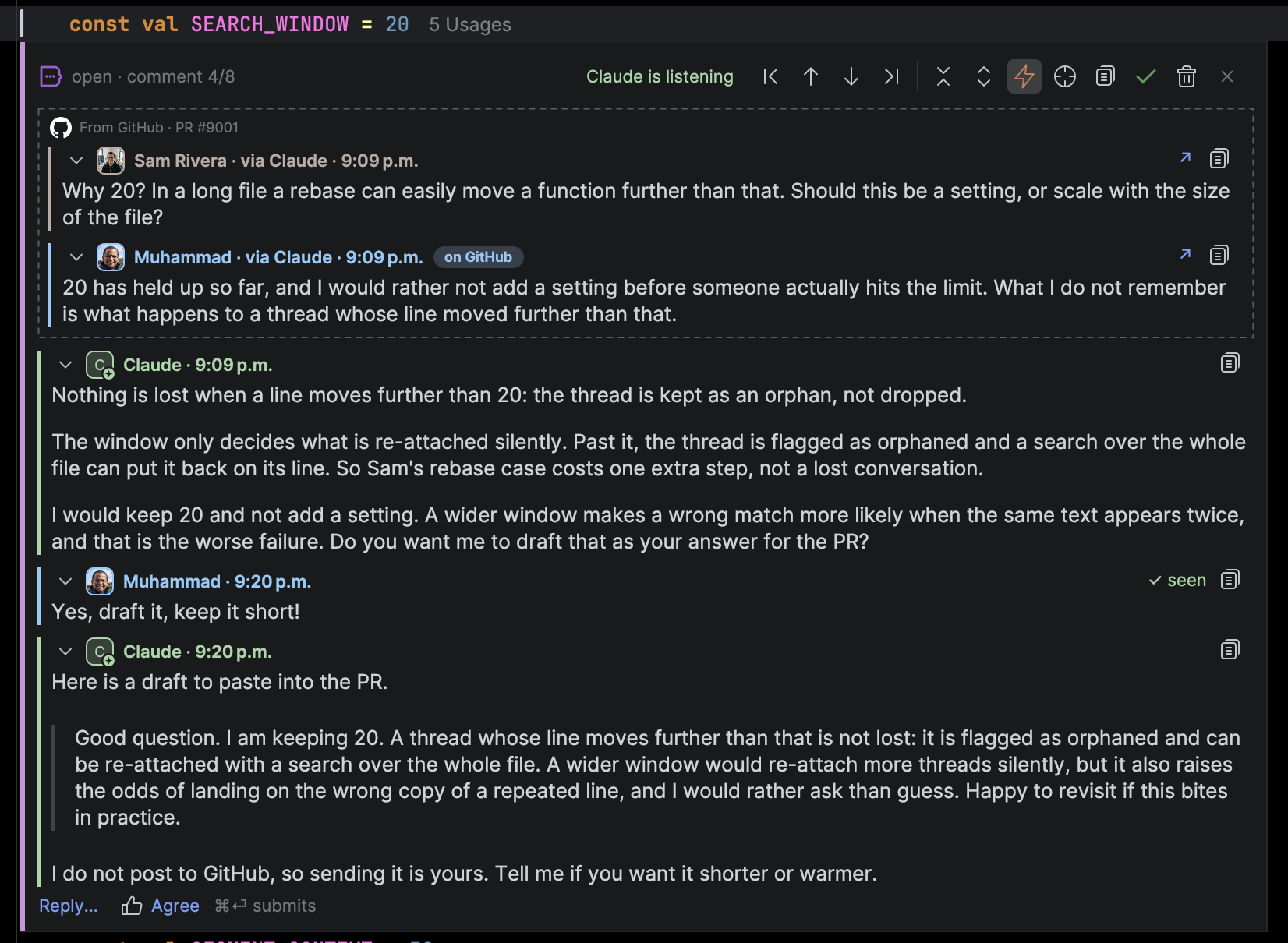
The dashed box holds the comments pulled from GitHub. Below it, the conversation continues with the agent—in this example, explaining the code and drafting a reply. Note that Marginalis never writes to GitHub: posting the reply always remains your decision.
The Marginalis tool window also shows who took part in each thread:

Settings
Under Settings → Tools → Marginalis, you can configure your display name, GitHub login, and avatar, as well as assign nicknames and avatars to teammates and agents.
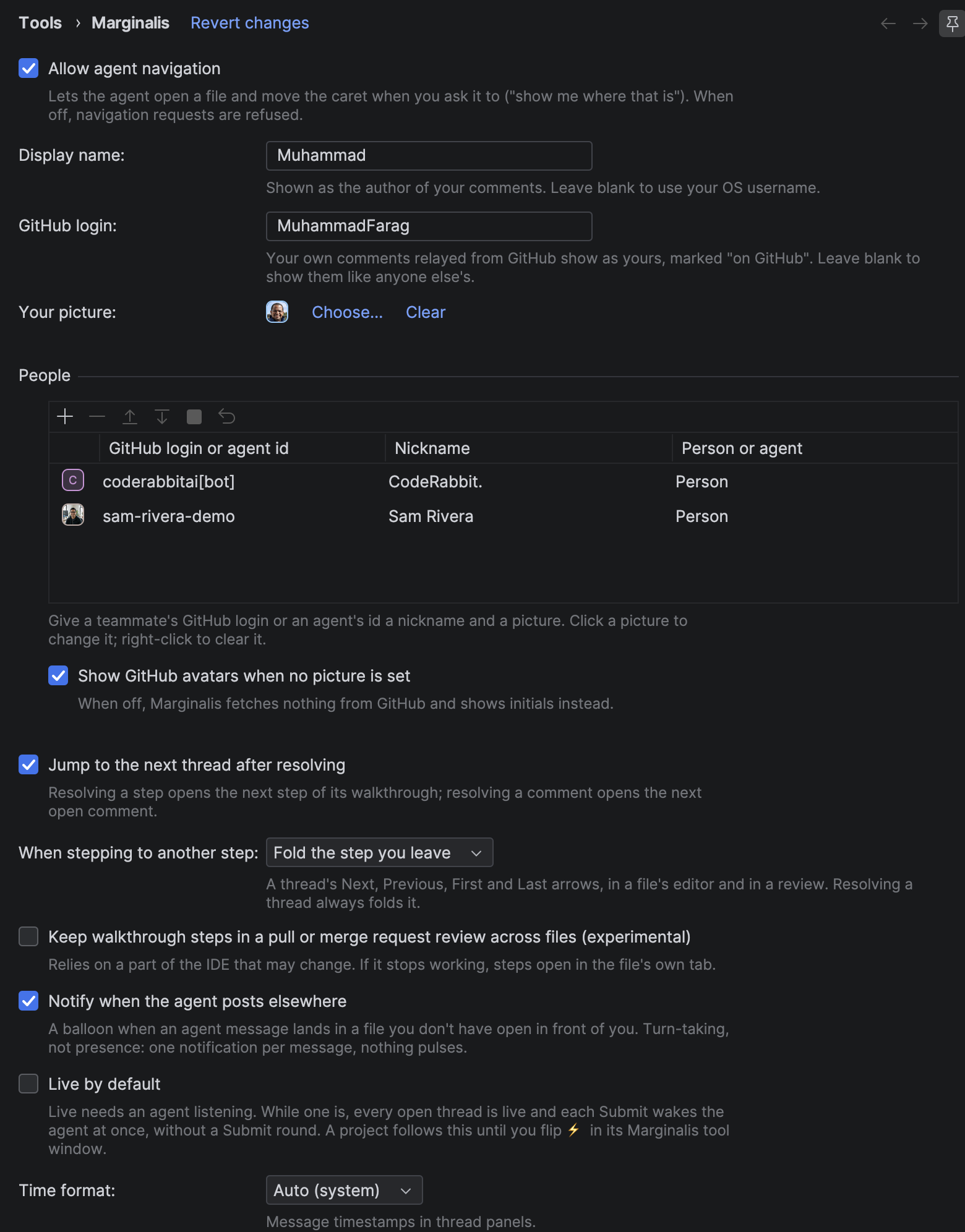
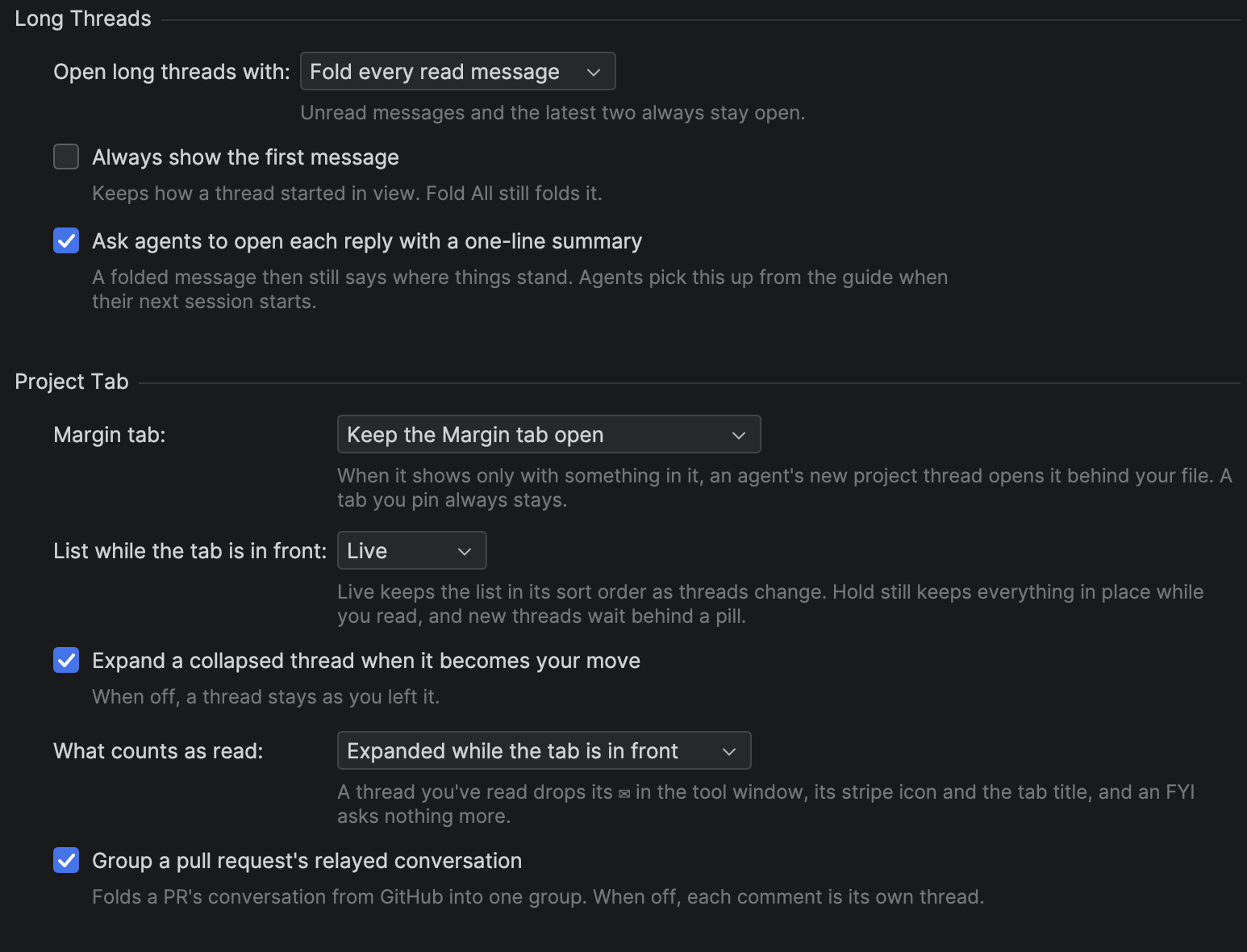
Further down on the same page, you can tune how long threads fold and how the Margin tab behaves—for example, folding read messages automatically, asking agents to open each reply with a one-line summary, or grouping relayed GitHub pull request conversations into a single thread.
Marginalis keeps code, design discussions, and agent pairing in one place—without copying line numbers or losing your flow across windows. If you try it out, let me know what works and what gets in your way.
Resources
- Marginalis on the JetBrains Marketplace
- Marginalis on GitHub (feedback and bugs welcome on the issue tracker)
- The Marginalis agent skill
Comments powered by Disqus.